
Documentation
User Guide
Complete reference for Swing Sniper Expert Advisor
1. About Swing Sniper EA
Swing Sniper is an Expert Advisor for MetaTrader 5 built around liquidity sweeps and confirmations. It automates a four-step signal pipeline: swing structure identification, liquidity sweep detection, EMA momentum confirmation, and multi-timeframe context bias analysis. All four conditions must align within a configured Kill Zone window before a single market order is fired.
Unlike grid or martingale systems, Swing Sniper operates with a strict one-trade-at-a-time rule. Each trade carries a structurally-placed stop-loss at the absolute swing extreme, and risk is defined precisely, never arbitrary. The EA is designed for traders who understand SMC concepts and want disciplined, systematic execution without discretionary override.
2. 4-Step Signal Pipeline
A trade entry is only permitted when all four pipeline steps pass simultaneously within the Kill Zone window. Each step is independent. Any single failure blocks the trade. This ensures every entry has full confluence across structure, momentum, and bias.
2.1 Step 1: Swing Identification
The EA continuously maps swing highs and lows on your chosen timeframe. These levels represent liquidity: stop orders stacked above highs and below lows by traders who got it wrong. That liquidity is what Swing Sniper hunts. Once a swing is identified, it stays on the radar for Step 2
2.2 Step 2: Liquidity Sweep Detection
A liquidity sweep occurs when price temporarily violates a swing level but fails to close through it, trapping stop-loss orders before reversing.
Sweep detection source is configurable. The EA can sweep and validate both regular swing highs/lows and previous-session highs/lows.
- • Buy sweep: the bar's wick breaks below the swing low, but the close is above the low. Signals institutional buying below the level.
- • Sell sweep: the bar's wick breaks above the swing high, but the close is below the high. Signals institutional selling above the level.
- • Intra-bar detection: sweeps are detected on the current open bar, not just closed bars, capturing 15–20% more valid setups that would otherwise be missed.
- • Structure scope: sweep logic works on both swing levels and previous session high/low levels based on Sweep source.
- • Session filters: Asia, London, and New York sweep toggles decide which session-generated sweeps are eligible for entries.
- • A sweep is invalidated if price subsequently closes through the swept level in the sweep direction. The level is no longer structurally intact.
- • Every swing that gets swept or invalidated will be plotted on the chart for visual reference.
2.3 Step 3: EMA Momentum Filter
A Multi Moving Averages are calculated on the Entry Timeframe. Their relative stack alignment is used as a momentum filter.
- • Buy alignment: current bar's close is above the filter.
- • Sell alignment: current bar's close is below the filter.
- • Momentum reset protection: after each trade, the EMA alignment state resets. The EA will not enter again until it sees a fresh alignment break and re-confirmation, preventing stale momentum entries on trending markets.
2.4 Step 4: Multi-TF Context Engine
This is the final gate, and the one that separates Swing Sniper from most EAs on the market.
Before any trade fires, a proprietary multi-timeframe engine runs a directional bias analysis across up to three higher timeframes simultaneously. Each timeframe is weighted independently. The engine produces a probability score, and a trade only executes when that score falls within your configured threshold, in the right direction.
We spent years developing and refining this system. It's deliberately not fully documented here. What we can say: it's modular, timeframe-agnostic, and based on multi smart money concept rules. If the context doesn't confirm, the EA stands down. No exceptions.
3. Input Parameters
All runtime configuration is controlled via the MT5 input parameter dialog when attaching the EA to a chart. Parameters are organised into logical groups matching the pipeline steps.
3.1 General Settings
| Parameter | Description |
|---|---|
| Magic Number | Unique identifier for this EA instance's trades. Change when running multiple instances on the same account. |
| Trade Comment | Comment string attached to each order for easy identification in trade history. |
| Show panel | Enable the on-chart panel to display EA status and signals. |
| Log verbosity level | Controls the amount of information logged to the Experts tab. Higher levels include more detailed debugging info. |
3.2 Swing & Entry
| Parameter | Description |
|---|---|
| Allows Buys | Enable or disable buy trades. |
| Allows Sells | Enable or disable sell trades. |
| Max Simultaneous Trades | Maximum number of trades the EA may open simultaneously. Once reached, no further entries are attempted until a trade closes. |
| Sweep source | Select which liquidity structure to sweep and validate: Swing high/low or Previous session high/low. |
| Sweep Asia Session | When true, sweeps generated from Asia session levels are considered valid. When false, they are ignored. |
| Sweep London Session | When true, sweeps generated from London session levels are considered valid. When false, they are ignored. |
| Sweep NY Session | When true, sweeps generated from New York session levels are considered valid. When false, they are ignored. |
| Swing Timeframe | Timeframe used to identify swing highs and lows. Higher TF = more significant structure levels. |
| Entry Timeframe | Timeframe used for sweep detection, EMA alignment, and final entry trigger. Must be equal to or lower than the Swing TF. |
3.3 Kill Zone
The Kill Zone defines the time window in which the EA is permitted to open new trades. Setups that form outside this window are detected and tracked but never executed.
| Parameter | Description |
|---|---|
| Kill Zone Start Hour | Hour (broker server time) at which the EA begins looking for entries. |
| Kill Zone Start Minute | Minute offset for the start of the Kill Zone. |
| Kill Zone End Hour | Hour at which the EA stops opening new trades. |
| Kill Zone End Minute | Minute offset for the end of the Kill Zone. |
Recommended: London session (07:00–17:00) or New York overlap (13:00–20:00) for highest liquidity. Always use broker server time, not local time.
3.4 Close Positions
| Parameter | Description |
|---|---|
| Enable end of Day Closure | If enabled, forces all open trades closed by the Force Close Hour. the EA closes it regardless of P&L. Prevents holding positions overnight. |
| Force Close Hour | If a trade is still open at this hour. |
| Force Close Minute | Minute offset for the force-close trigger. |
| Force close trades after X days (0 = disabled) | Automatically closes any trade that has been open for the specified number of days. Set to 0 to disable this feature. |
3.5 Context Engine
| Parameter | Description |
|---|---|
| Higher Timeframe | First higher timeframe for bias analysis. |
| Mid Timeframe | Second higher timeframe for bias analysis. |
| Lower Timeframe | Third higher timeframe for bias analysis. |
| Min Probability % | Minimum context probability required to permit a trade. Below this threshold, the trade is blocked. |
| Max Probability % | Maximum context probability cap. Allows filtering out extreme readings if desired. |
| Allow Probability Slippage | When enabled, allows a small tolerance around probability thresholds so borderline-valid setups are not skipped by strict boundary checks. |
Context engine probability thresholds move only from 50% to 100%.
3.6 Stop-Loss & Break-Even
The stop-loss is always placed at the absolute swing extreme from which the sweep was triggered, the furthest point reached by the wick. This is a structurally valid placement, not an arbitrary points value.
| Parameter | Description |
|---|---|
| SL Padding Points | Additional points added beyond the swing extreme to avoid stop-hunting by a few ticks. |
| Minimum SL in ATR (0 --> not used) | Sets a minimum stop-loss size based on the Average True Range (ATR). If the calculated SL is smaller than this value, it will be adjusted up to the minimum. Set to 0 to disable. |
| TP R-Multiple | Take profit distance expressed as a multiple of the stop-loss distance. For example, 2.0 means TP is set at 2 times the SL distance from entry. |
| Enable Break-Even | When enabled, the SL is moved to entry + BE Buffer Points once the trade reaches the BE Trigger R-Multiple. |
| BE Trigger R-Multiple | The trade must reach this R profit before break-even is activated. |
| BE Buffer Points | Points beyond entry to set the break-even SL (locks in a small profit rather than exactly entry). |
3.7 Lot Size / Risk
Lot sizing is controlled by the Risk Mode parameter. Supported modes:
Fixed Lot
A fixed lot size is used for every trade regardless of account size or SL distance.
% Balance
Lot is calculated so that the SL distance equals the specified percentage of account balance.
% Equity
Same as % Balance but uses live equity rather than balance, adjusts in real time.
Fixed Dollar
Lot is calculated so that the SL distance equals the specified dollar amount.
| Parameter | Description |
|---|---|
| Risk Mode | See modes above. |
| Risk Value | The risk amount expressed in the selected mode's unit (e.g. 1.0 = 1% for % Balance modes, or 1.0 = 1 lot for Fixed Lot). |
3.8 Obfuscator Module
An optional add-on that introduces randomness into each trade so that users running the same configuration do not end up with identical entries and exits. Particularly useful for prop firm accounts.
| Parameter | Description |
|---|---|
| Enable Obfuscation | Activates the module. When disabled, all values below are ignored and the EA behaves normally. |
| Exits min random offset | Minimum number of points added or subtracted randomly to the SL and TP on each trade. |
| Exits max random offset | Maximum number of points added or subtracted randomly to the SL and TP on each trade. |
| Entry min delay | Minimum random delay applied between the signal trigger and order placement. |
| Entry max delay | Maximum random delay applied between the signal trigger and order placement. |
| Max minutes to close BEFORE target time | The force-close time is shifted earlier by a random number of minutes up to this value on each trading day. |
3.9 Sessions Inputs
These inputs define the session windows used by the EA and the colors used to draw session boxes/lines on chart. All times are broker server time.
| Parameter | Description |
|---|---|
| Asia start hour | Hour at which Asia session starts. |
| Asia start minute | Minute at which Asia session starts. |
| Asia end hour | Hour at which Asia session ends. |
| Asia end minute | Minute at which Asia session ends. |
| London start hour | Hour at which London session starts. |
| London start minute | Minute at which London session starts. |
| London end hour | Hour at which London session ends. |
| London end minute | Minute at which London session ends. |
| NY start hour | Hour at which New York session starts. |
| NY start minute | Minute at which New York session starts. |
| NY end hour | Hour at which New York session ends. |
| NY end minute | Minute at which New York session ends. |
| Asia box/line color | Chart color used to draw Asia session box/line. |
| London box/line color | Chart color used to draw London session box/line. |
| NY box/line color | Chart color used to draw New York session box/line. |
Session windows drive sweep/session logic; box/line colors affect chart visuals only.
4. Visual Dashboard Panel
A real-time on-chart panel is rendered in the top-left corner of the chart. It updates on every tick and displays:
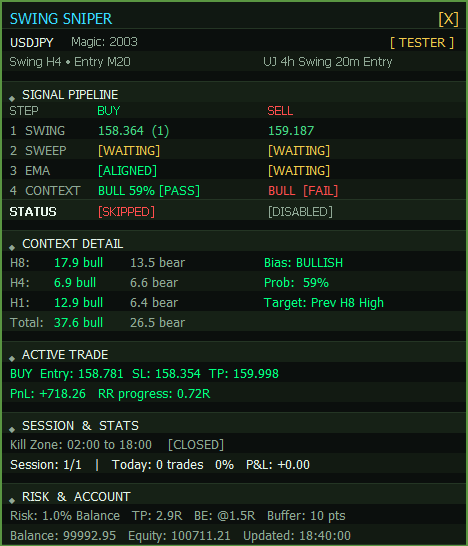
Pipeline Status
Green/red indicators for each of the 4 steps, showing which are currently passing and which are blocking a trade.
Context Scores
Bull weighted total and bear weighted total for each context TF, plus the calculated probability % and bias direction.
Active Trade
Entry price, current P&L in pips and R-multiples, SL and TP levels.
Session Stats
Today's trade count, daily P&L, and whether the daily loss/profit limit has been reached.
Kill Zone Countdown
Time remaining until the Kill Zone opens (or closes), displayed in HH:MM format.
Current Sweep Level
The price level of the most recent active sweep (shown with a horizontal reference marker).
5. Logging System
Swing Sniper outputs structured log messages to the MT5 Experts tab. Standard log level records key events: trade entries, exits, break-even triggers, daily limit events, and pipeline state changes.
When verbose diagnostics are also output: every swing scan result, every sweep check, every EMA value, and every context score calculation, useful for diagnosing unexpected behaviour during optimisation or forward testing.
Log entries are prefixed with [SwingSniper] for easy filtering in the MT5 Experts tab using Ctrl+F.
6. Troubleshooting
EA is not placing trades
Check that: (1) the EA smiley face is visible in the top-right of the chart (not a red X), (2) AutoTrading is enabled in MT5, (3) the current time is within your Kill Zone window, (4) you have not hit the Daily Trade Limit, Daily Loss Limit, or Daily Profit Target, (5) all 4 pipeline steps are showing green in the panel simultaneously.
Context engine always blocking
Reduce the Min Probability % threshold (e.g. from 75 to 60) or adjust the Context TF weights so that the dominant TF has a higher weight. Also verify your Context TFs are appropriate for the instrument.
No sweeps detected
Ensure the Swing Lookback Bars covers enough recent price action. Try increasing from 10 to 15–20. Also check that the Swing TF you selected has clear swing highs/lows in the recent bars.
EMA alignment never confirmed
If the market is choppy and price is crossing the EMAs repeatedly, consider using a higher Entry TF (e.g. M30 instead of M15) for a cleaner trend signal.
Trades closing too early
If the Force Close Hour is triggering before TP is reached, extend it. For overnight instruments, consider disabling Force Close entirely and relying on TP/SL.
License error on startup
Ensure the MT5 terminal is connected to the internet and your MQL5 account is active. If the error persists, deactivate and reactivate via MQL5 Market.
Still stuck?
Enable debug logging and share the Experts tab output when contacting support.
Contact Support